Back in the day, sending an EPUB to Kindle was a pain. You couldn’t upload an EPUB to KDP, and getting one onto your Kindle usually meant converting it to MOBI first… then hoping nothing broke.
But times have changed. MOBI is basically dead, and Amazon now accepts EPUB files through its Send to Kindle tools. When you send an EPUB, Amazon converts it into a Kindle format automatically (since Kindles don’t read EPUB files directly).
So the question now is simple: how do you send an EPUB to Kindle?
Maybe you downloaded a free ebook from an author, or received an advanced reader copy (ARC).
The good news is, it’s easier than it used to be.
Here are the three easiest ways (starting with the simplest).
Method #1: Upload EPUB Using Send to Kindle (Web)
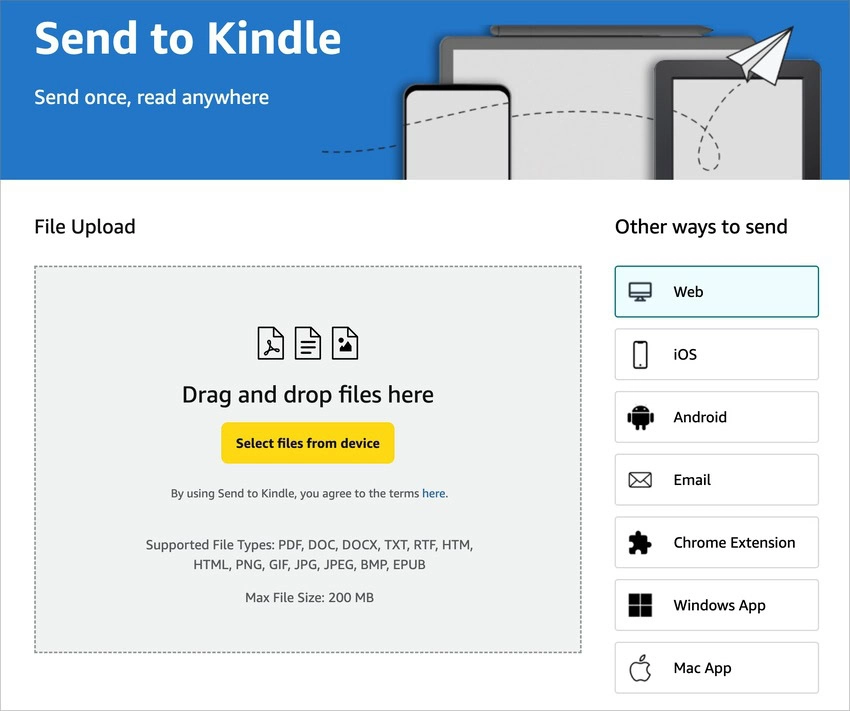
This is the easiest way for most people to send EPUB files to a Kindle. You can upload your file directly from your browser without installing anything!
And once uploaded, your file is delivered to your library.
Step 1: Open the Send to Kindle page
Go to Amazon’s Send to Kindle page and sign in to your account.
Step 2: Upload your EPUB file
Drag and drop your EPUB file into the upload area, or click to select it from your computer.
Step 3: Choose your Kindle device
Select the Kindle device or app where you want the file to be delivered.
Step 4: Send the file
Click “Send” and wait for Amazon to process the file.
Once processed, your EPUB will appear in your Kindle library and sync across your devices.
Note: This method is especially useful for larger files, since the web uploader supports bigger file sizes (up to 200 MB).
Method #2: Email EPUB to Your Kindle
Emailing your EPUB file is another simple way to send it to your Kindle. Like the web uploader method, your file will be delivered to your Kindle once it’s processed.
This method can be helpful if you prefer using email or want to send files directly from your inbox.
Here's how it works.
Step 1: Find Your Kindle Email Address
Every Kindle device that you have is automatically assigned an email. So before you can send an EPUB to that email address, you need to find it and authorize your main email address (the one you use for day-to-day interactions) to send it books. The ‘Send to Kindle' service makes it convenient to transfer files and ebooks from various sources to your Kindle device.
To do this, follow these steps:
- Log into your Amazon account, go under Account & Lists and select Content & Devices
- Select the Devices tab
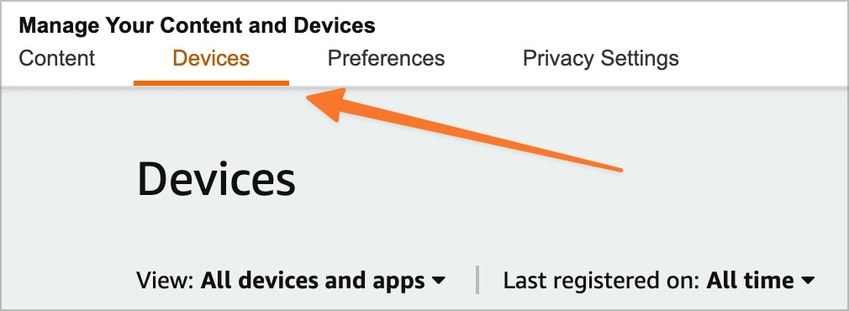
- Find your device in the list of devices and click on it
- Once you have found your device, it should have the Kindle email listed (one that ends in “@kindle.com”). You can now copy that email and save it for later.
Next, we need to make sure your main email, the one you normally use, is authorized to send emails to this @kindle.com address. To do this, follow these steps:
- In the Content & Devices area, go to the Preferences tab
- Find the section that says Personal Document Settings
- Find the link that says “Add a new e-mail address” under the Approved Personal Document E-mail List section
- Enter your regular email here
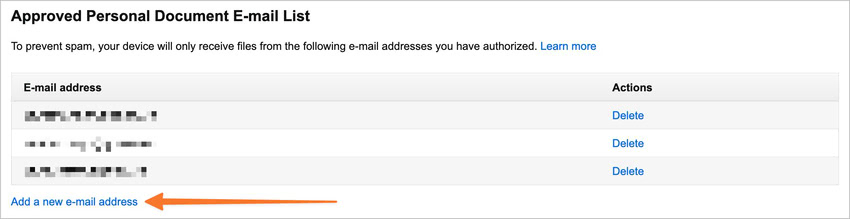
Once you have that all squared away, it’s time to send your EPUB file to your Kindle…
Step 2: Email Your EPUB File
Once you have found your Kindle address, and authorized your main email to send it books, the rest is relatively easy. Simply follow these steps:
- Create a new email in whatever email service you use (gmail, hotmail, etc.)
- Attach your EPUB file to the email
- Send it to your @kindle.com email that you collected earlier
- Once you send the email, you will get a verification email from Amazon. Simply open up that email and hit the verify button.
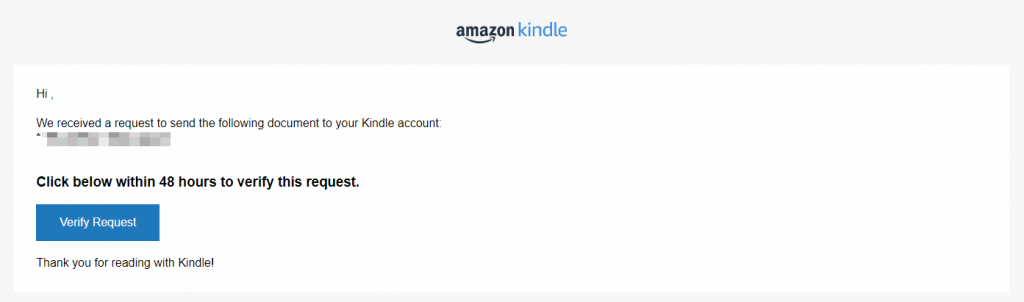
That's it! No need for a subject line or content in the body of your email. All you need is the EPUB file, and the @kindle.com address to send it to.
Additional Notes on Sending Ebooks to Kindle Via Email
- You can send up to 25 attachments in one email
- You can have up to 15 email addresses approved to send emails to your Kindle
- To save space you can compress your EPUBs into a ZIP file. Amazon is smart enough to unzip those files before transferring them to your Kindle
- Amazon also allows the following file types to be emailed to your Kindle:
- .DOC, .DOCX
- .HTML, .HTM
- .RTF
- .TXT
- .JPEG, .JPG
- .GIF
- .PNG
- .BMP
- Your device must be connected to the Internet when you send the email
Note: For email, your file size must be 50 MB or less. If you're dealing with larger EPUBs, use the Send to Kindle web uploader instead.
Method #3: Send EPUB Using the Send to Kindle App
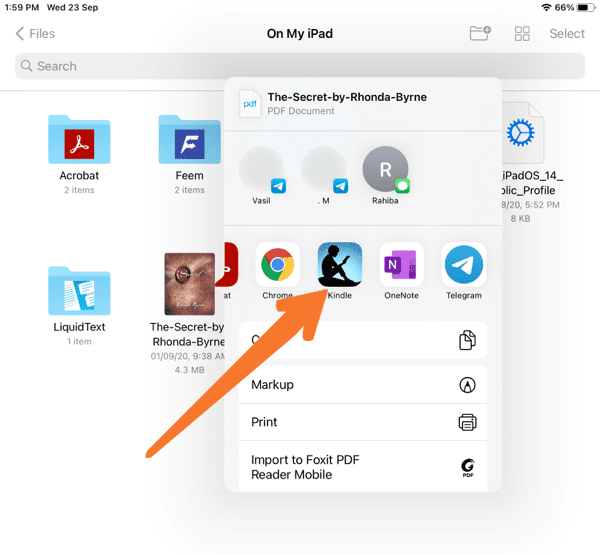
If you regularly send files to your Kindle, you can use the Send to Kindle app or browser extension to make the process faster and more convenient. These tools let you send EPUB files directly from your device without using email or manually uploading files each time.
Using the Desktop App (Mac or Windows)
Amazon offers a Send to Kindle app for both Mac and Windows, allowing you to send EPUB files directly from your computer.
After installing the app and linking your Amazon account, you can simply drag and drop your EPUB file into the app to send it to your Kindle.
Using the Kindle Mobile App (iOS or Android)
You can also send EPUB files from your phone using the Kindle app on iOS or Android. Most devices allow you to share files directly to Kindle using the system share menu.
To do this, open the EPUB file on your device, tap the share icon, and select Kindle as the destination.
But heads up… these mobile apps can vary slightly depending on your device, and it may not be as consistent as the email or web uploader methods.
Using the Chrome Extension
Amazon also offers a Send to Kindle Chrome extension that lets you send articles and files directly from your browser.
If Chrome is your browser of choice, this is especially useful for saving web content to read later on your Kindle.
These tools are ideal if you frequently send EPUB files to your Kindle and want a faster, more integrated workflow.
Which Method Should You Use?
All three methods above will get your EPUB onto your Kindle. The best one depends on how you prefer to send files.
- Use email if you want a simple, no-install option and are sending smaller files.
- Use the web uploader if you want the easiest method with no setup, especially for larger files.
- Use the Send to Kindle app if you regularly send files and want a faster, drag-and-drop workflow.
For most people, the web uploader is the easiest place to start. It doesn’t require any setup, and you can upload your EPUB file directly from your browser in seconds.
If one method doesn’t work for some reason, try another. All three use Amazon’s Send to Kindle service, so your files will end up in the same place.
One quick tip: if your EPUB file isn’t formatted correctly, it may not display properly on Kindle. This can lead to missing images or formatting issues after conversion. If you’re creating your own ebook, tools like Atticus can help ensure your file is properly formatted before you send it.